Email Templates
Email Templates allow you to standardize outreach while still keeping emails personalized.
They are used when drafting emails from the Cortex or Agent X.
Connecting Your Email Provider
You can connect either Gmail or Outlook (Microsoft 365 Business).
Gmail
- Select Gmail as your provider
- Click Authorize
- Accept the requested permissions
That’s it — your Gmail account is now connected.
Outlook (Microsoft 365 Business)
- Select Outlook as your provider
- Click Authorize
- Accept the requested permissions
- On the same page, add the email address that will be used to send emails
Once completed, Outlook is ready for use.
Zoho Mail
Zoho Mail connects via an outgoing webhook that forwards incoming emails to the platform in real time.
Step 1 — Open Webhooks
In Zoho Mail, go to Settings → Developer Space → Webhooks and select the Outgoing Webhooks tab. Click Create new configuration.
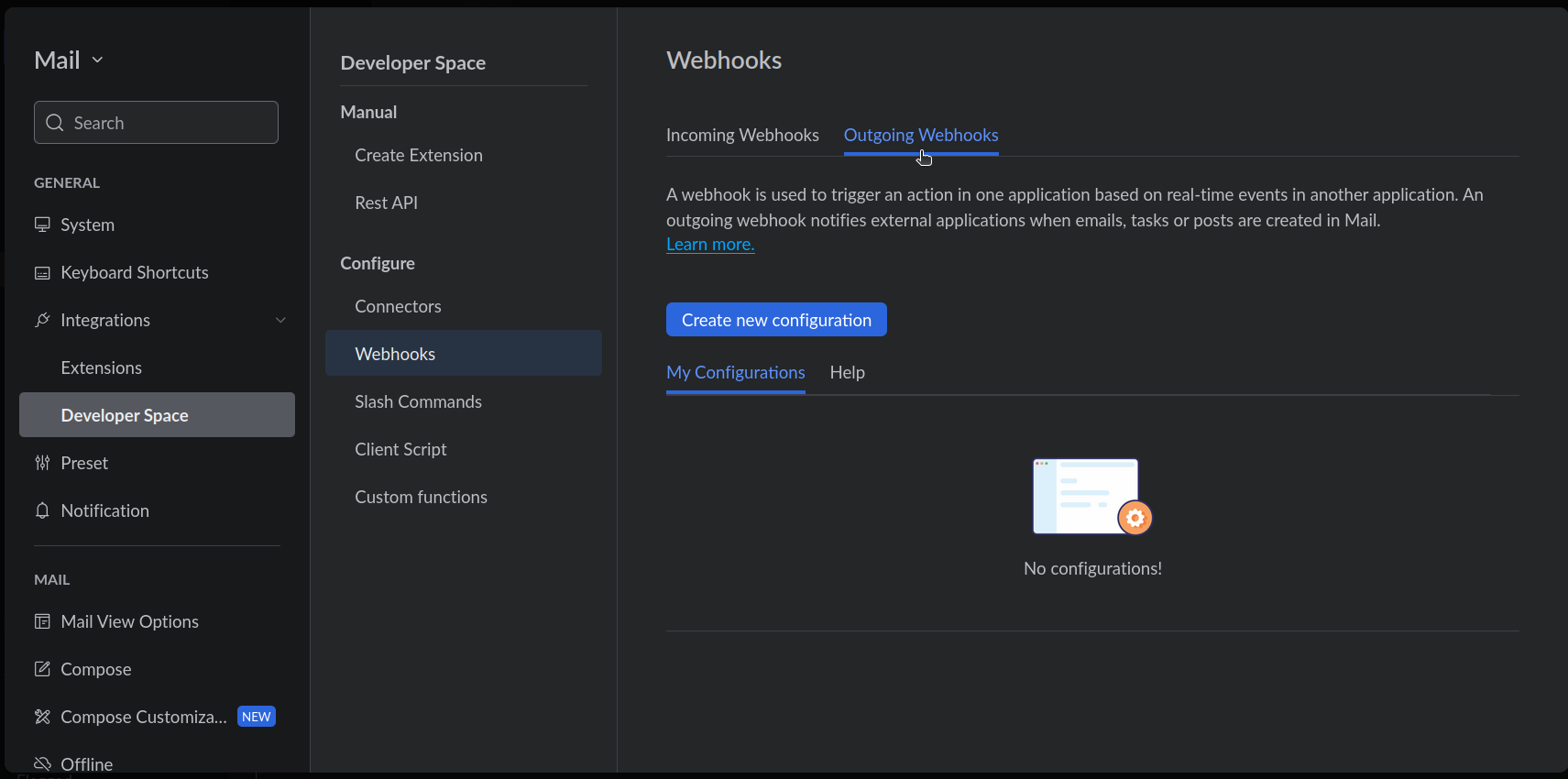
Step 2 — Configure the webhook
Fill in the form:
- Custom Username — enter a label, e.g.
Outgoing Webhook for XyRo - Webhook URL — paste the URL provided in your account settings
- Select entity — choose Mail
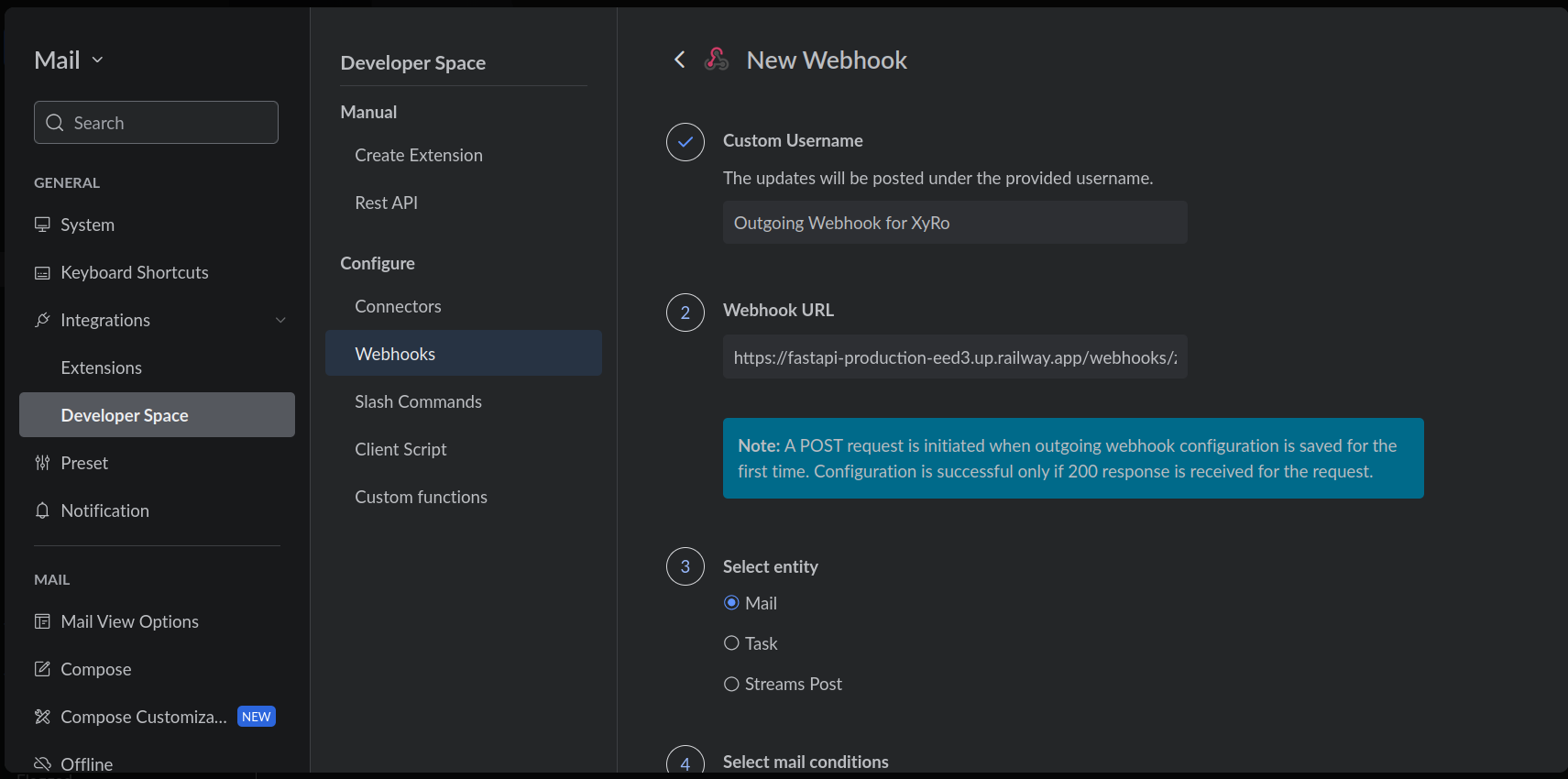
Step 3 — Set mail conditions and save
Under Select mail conditions, choose No conditions. All emails. Leave the Custom Function field empty, then click Save.
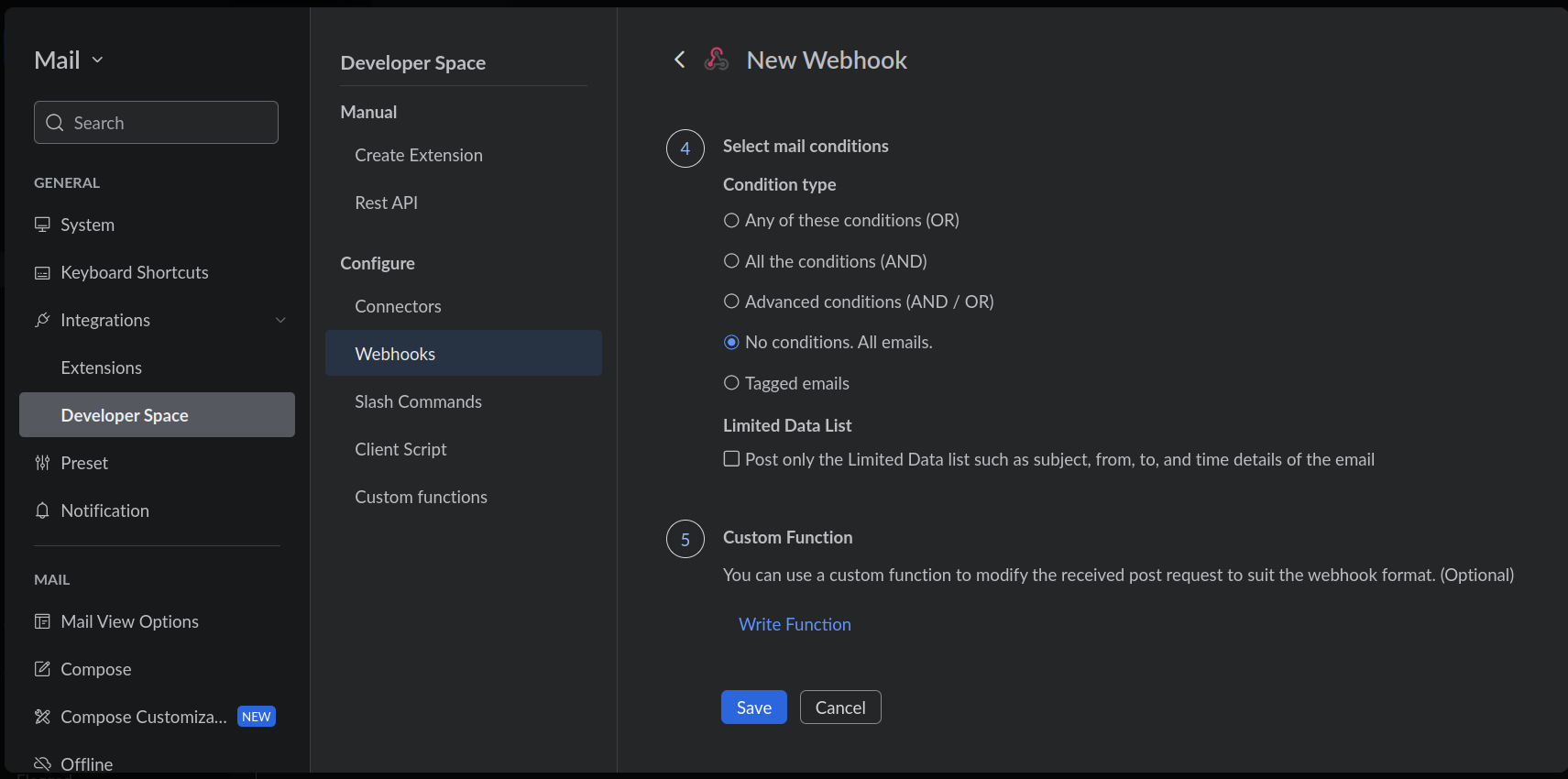
Once saved, Zoho Mail will forward all incoming emails to the platform automatically.
Managing Templates
You can create, edit, and delete email templates.
Template Editor
Each template body supports rich formatting, including:
- Bold, italics, and lists
- Links
- Editor toolbar formatting options
Dynamic Variables
You can use placeholders inside templates:
{contact_name}{company_name}
These are automatically replaced when drafting emails.
Signature Options
Each template can define its own signature behavior:
- Custom signature
- Blank
- Use area code signature
When using an area code signature, it is automatically filled using that area code’s details.
Pinning a Template to a Configuration
A Receptor or Optic configuration can pin one template, so every company that configuration finds is contacted with it — effectively one campaign per configuration.
Open the configuration, expand Advanced Settings, and pick a template under Email template. Leave it on Organization default to keep the previous behavior.
Which template a send actually uses, highest priority first:
- A template chosen explicitly for that send (drafting from Cortex, or asking Maya to run outreach with a specific template)
- The template pinned to the configuration that sourced the company
- The best-performing template, when template learning is enabled for the organization
- The organization's default template
Notes:
- Follow-ups stay on the same template as the original send, so a campaign remains consistent across the whole cadence.
- Deleting a template un-pins it from any configuration using it; those configurations fall back to the organization default.
- Sends from a pinned configuration are excluded from template learning statistics — the template was chosen deliberately, so it isn't treated as an experiment.